






Imunify360 is a security tool available in cPanel that helps detect and remove malware from your hosting account. You can easily run a scan and clean infected files directly from the Imunify360 interface.
Running a Malware Scan in cPanel
Follow these steps to scan your website for malware:
-
Log in to cPanel
Access cPanel through your hosting client area or directly using your cPanel login credentials. -
Open Imunify360
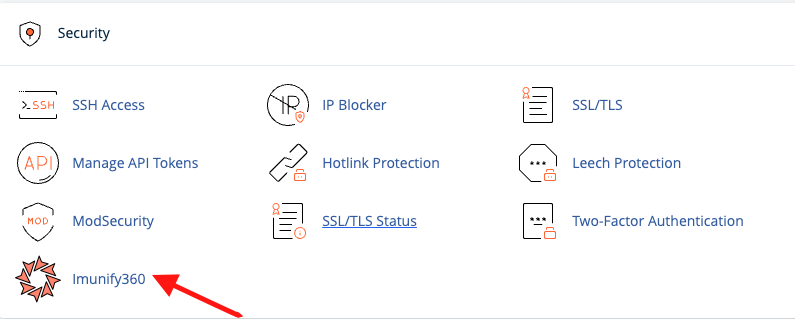
Scroll down to the Security section and click Imunify360.
-
Start the Scan
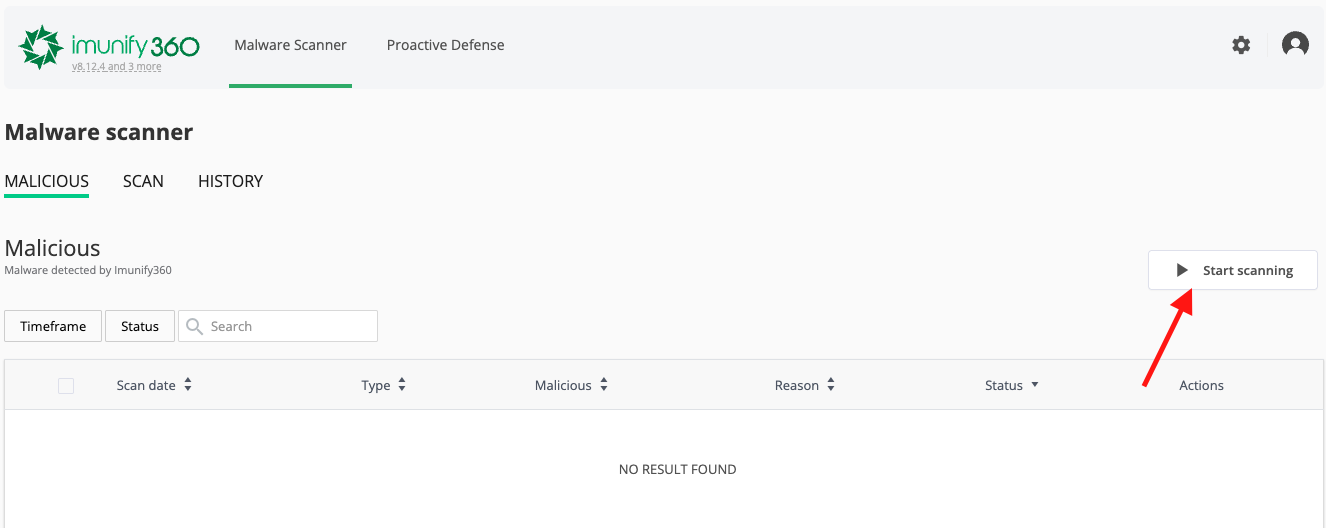
Once the Imunify360 dashboard loads, click the Start Scanning button.
-
Scan Process
The scan will be added to the queue and will begin automatically. -
Receive Notification
After the scan completes, a notification email will be sent to the administrative email address associated with your cPanel account.
Make sure the email address configured in your cPanel account is correct so you receive the scan results.
Cleaning Malware-Infected Files
After the scan finishes, Imunify360 will list all detected malicious files.
Steps to clean infected files:
-
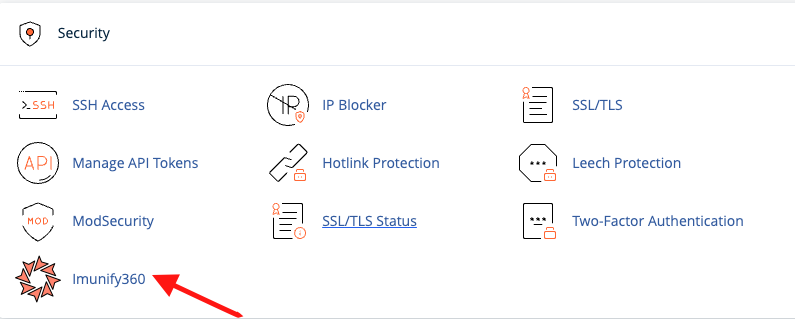
Open Imunify360 from the Security section in cPanel.
-
Navigate to the Malicious Files list.
-
You will see several action icons for each detected file:
-
View File (Eye icon) – Opens the file so you can review its contents.
-
Clean File (Broom icon) – Removes the malicious code from the file.
-
Ignore (Settings icon) – Adds the file to the ignore list if it is a false positive.
-
To clean multiple files at once:
-
Select the files using the checkboxes.
-
Click Clean up all.
-
-
Confirm the cleanup action when prompted.
During cleanup:
-
A backup of the infected files is kept for 14 days.
-
Files in quarantine may be restored before cleanup.
Once the process completes, the file status will change to Content Removed, indicating the malware has been successfully cleaned.
