



FTP (File Transfer Protocol) accounts allow you to upload, download, and manage files on your hosting account. Here’s how to create, delete, or update FTP accounts in cPanel.
Creating a New FTP Account
-
Log in to cPanel.
-
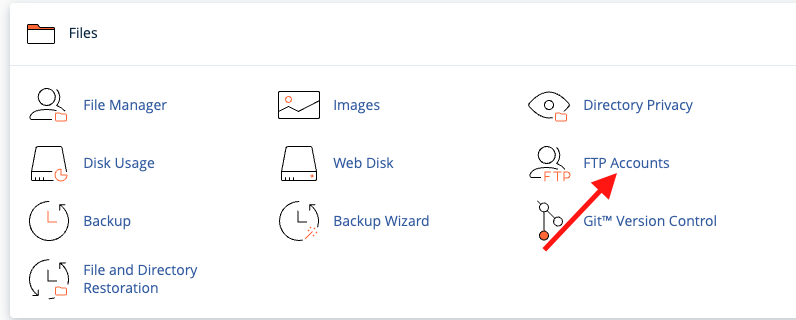
Navigate to the Files section and click FTP Accounts.
-
Under Add FTP Account, fill in the details:
-
Login: Choose a username. The full FTP username will be formatted as
user@yourdomain.com. -
Password: Enter a strong password. You can use the Password Generator for help.
-
Directory: By default, cPanel sets this automatically. You can change it to specify which folder the FTP account can access. Use
/for full access. -
Quota: Set the maximum storage (in MB) for this account, or select Unlimited.
-
-
Click Create FTP Account. You’ll see a confirmation: “Account Created.”
Deleting an FTP Account
-
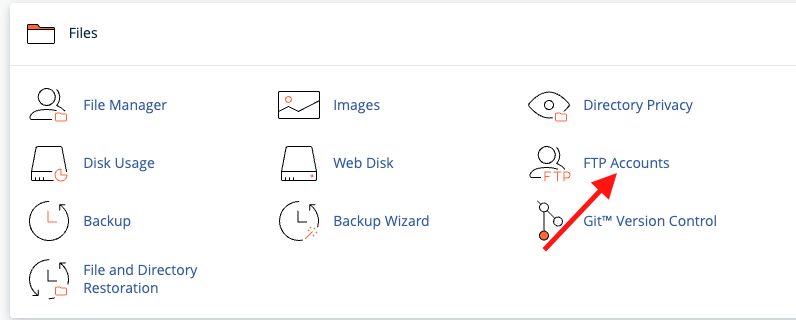
Log in to cPanel and go to FTP Accounts under the Files section.
-
In the FTP Accounts list, click Delete next to the account you want to remove.
-
(Optional) Delete the User’s Home Directory, this will permanently remove all files in the user’s FTP folder. Only use if you are sure.

-
Click Delete to remove the account.
Changing an FTP Account Password

-
Log in to cPanel and go to FTP Accounts.
-
In the FTP Accounts list, click Change Password for the account you want to update.
-
Enter a new strong password and click Change Password.
Note: To change the main FTP account password, update your cPanel account password instead.
That’s it! Your FTP accounts are now ready to use for uploading, downloading, and managing website files.
