








1. Resetting cPanel Password via Client Area
Steps:
-
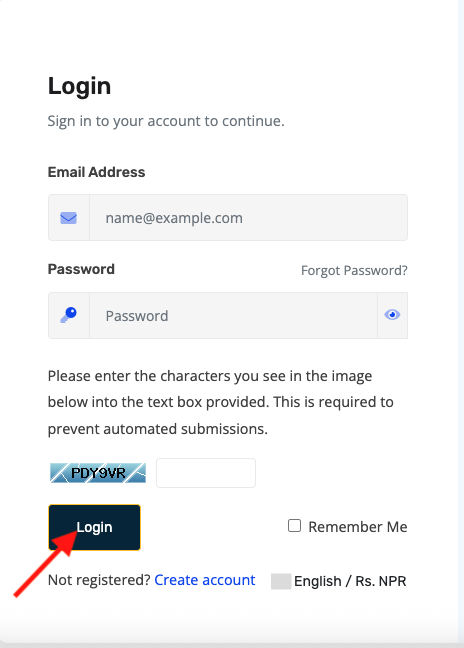
Log in to your PrabhuHost Client Area: https://portal.prabhuhost.com/clientarea
-
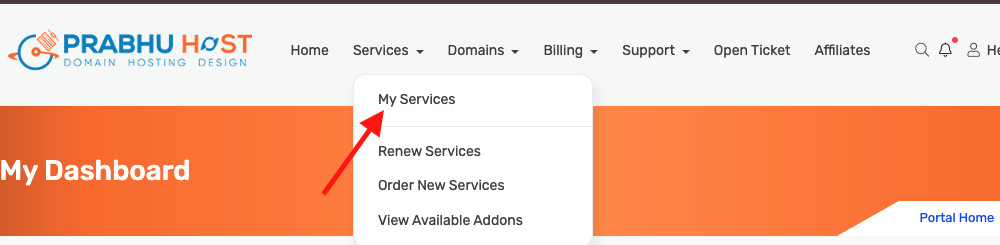
Navigate to Services → My Services.
-
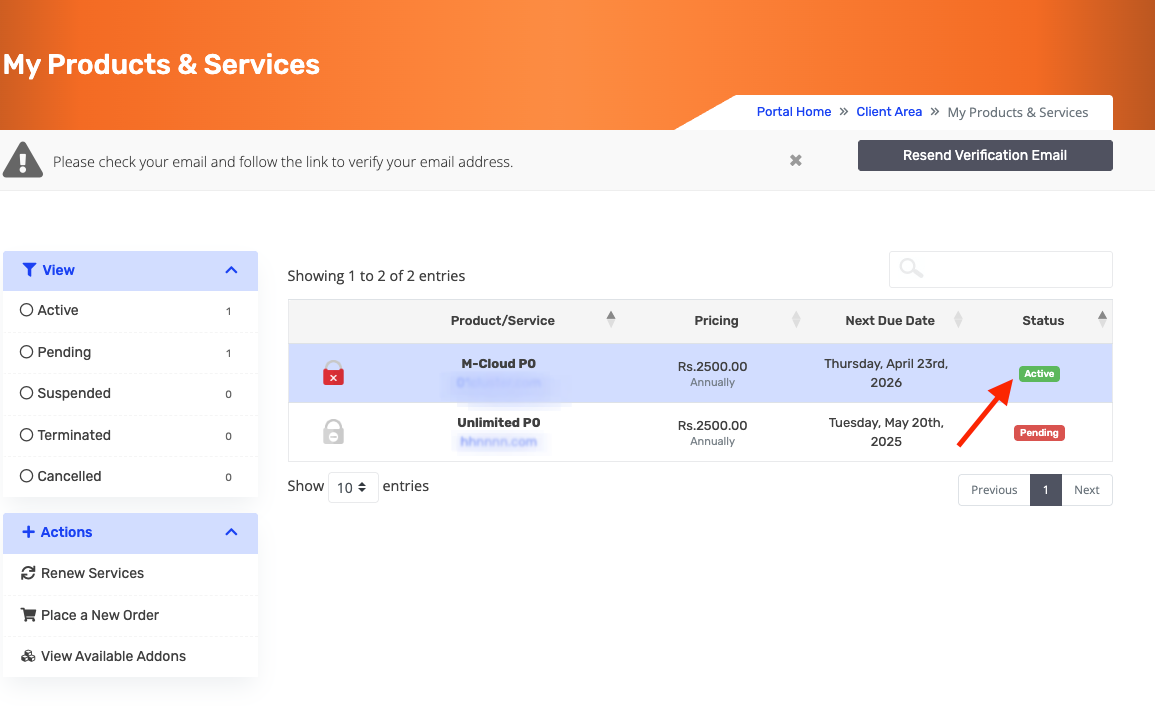
Select the hosting account you want to manage.
-
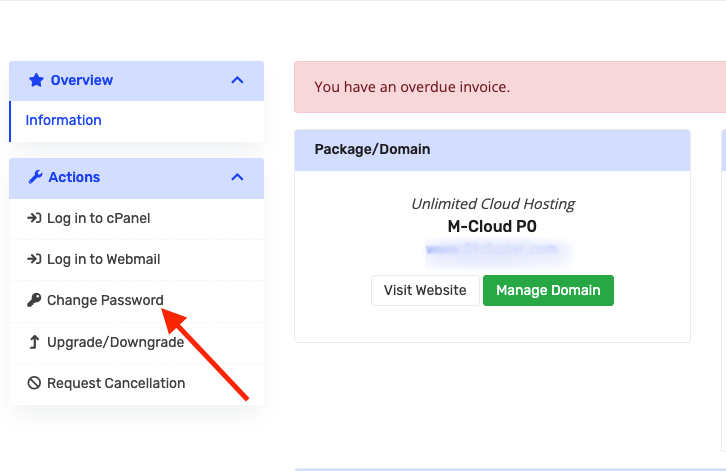
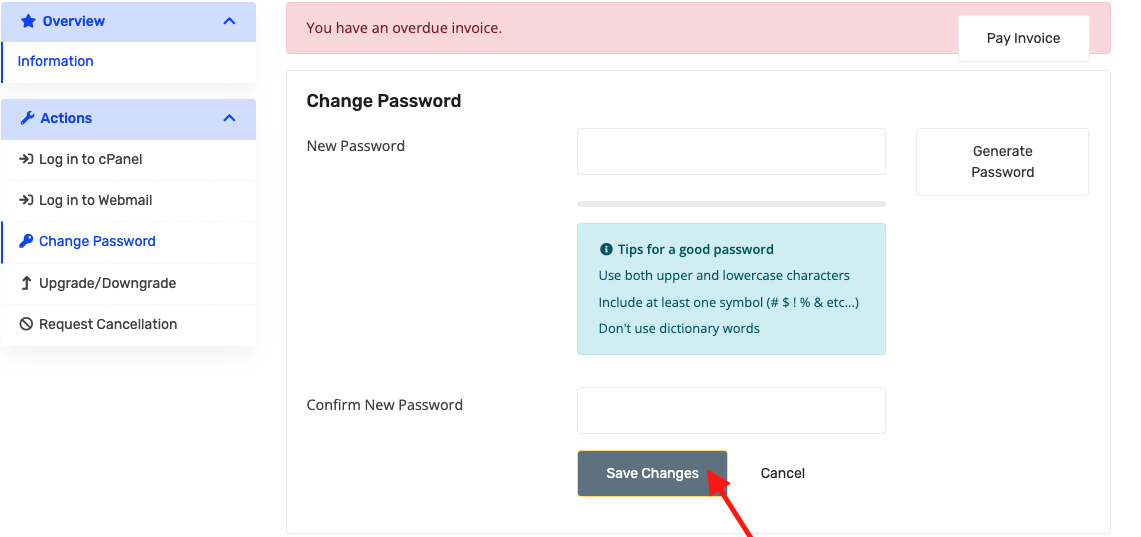
Click Change Password.
-
Enter a new secure password and confirm it.
-
Click Save Changes.
2. Resetting cPanel Password Directly (Optional)
This method is only available if you already know the current password or are logged in via Client Area.
Steps:
-
Access cPanel directly
-
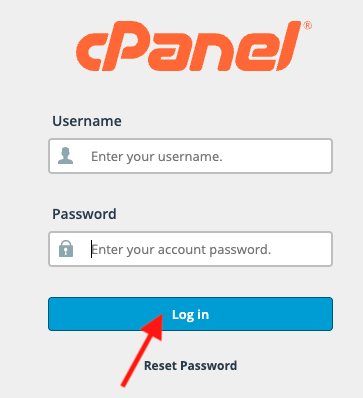
Log in with your current cPanel username and password.
-
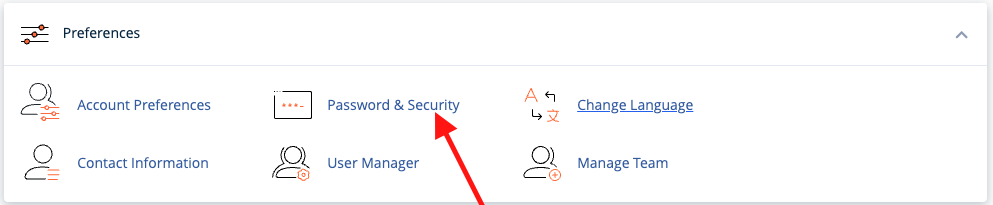
Navigate to Preferences → Password & Security.
-
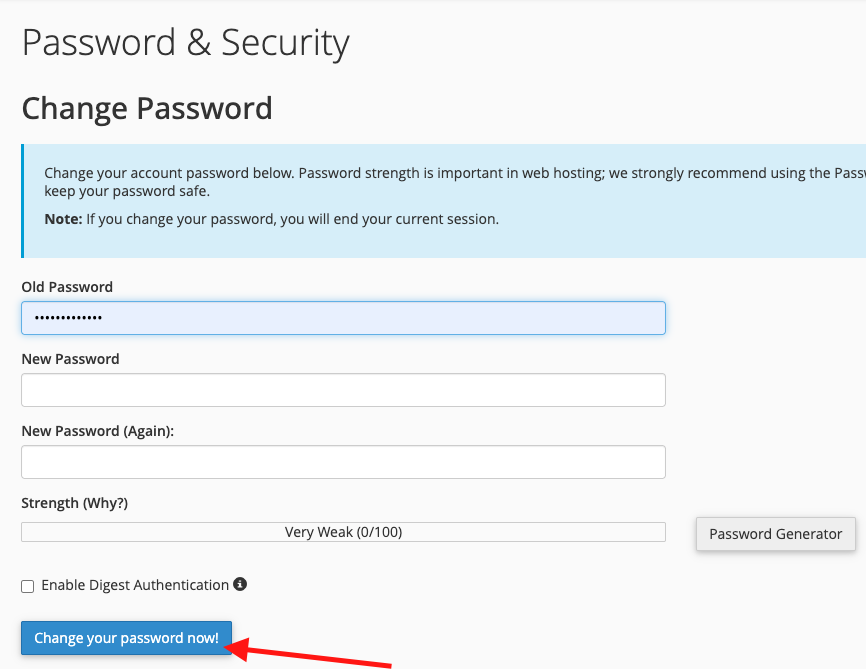
Enter your old password, then the new password twice.
-
Click Change your password now.
Tips & Best Practices
-
Use a strong password: mix uppercase, lowercase, numbers, and symbols.
-
If you reset via Client Area, it automatically updates your cPanel login, no further action needed.
-
If you cannot access Client Area, contact support for assistance.
