



Setting Up a Node.js Application via cPanel
1. Create a New Application
-
Log in to your cPanel account.
-
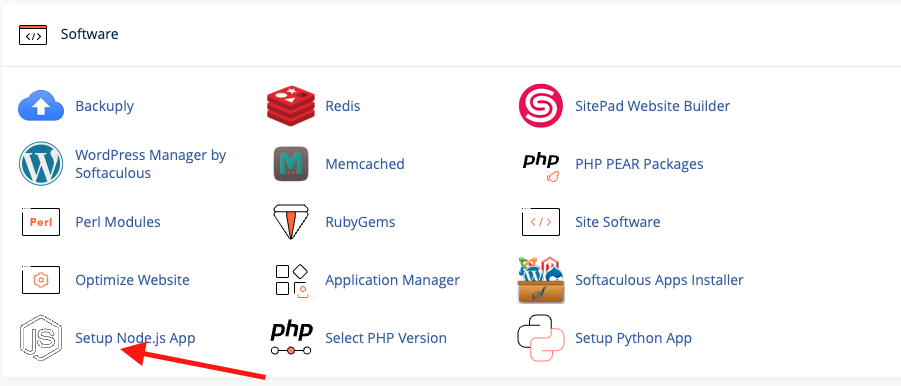
Scroll to the SOFTWARE section and click on Setup Node.js App.
-
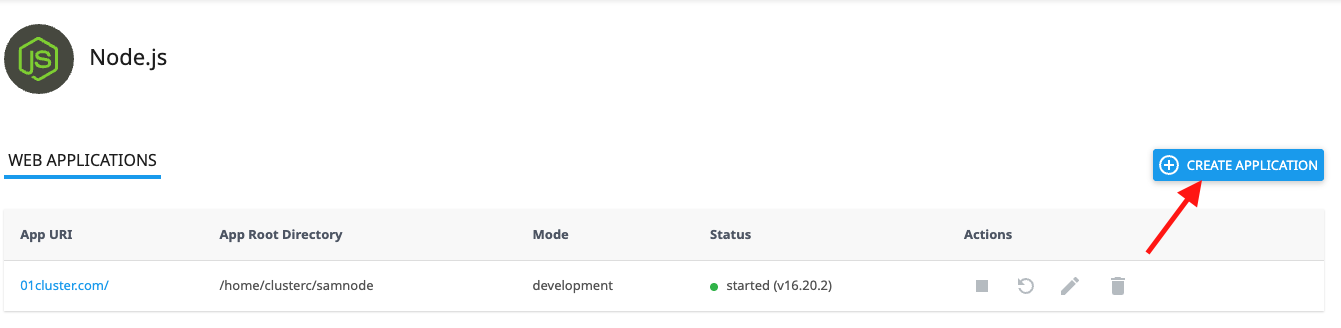
On the Node.js page, click Create Application.
-
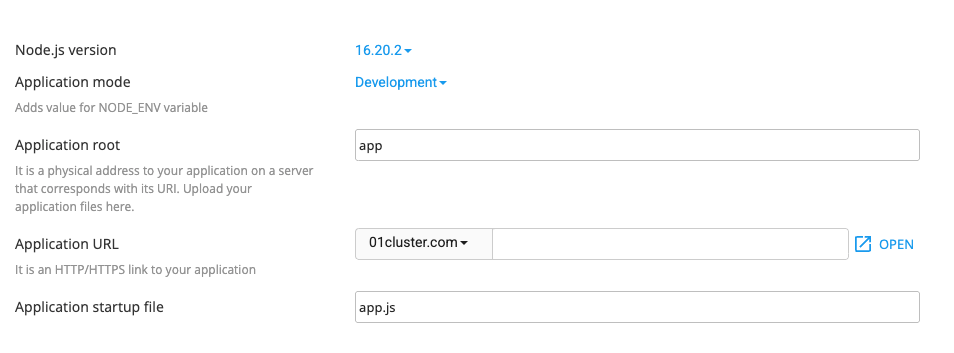
Fill in the following:
-
Node.js version – Select your preferred version.
-
Application mode – Choose between Development or Production.
-
Application root – Folder where your app files will reside (e.g.,
/app). -
Application URL – The web address to access your app (e.g.,
yourdomain.com/app). -
Startup file – Entry point for the app (commonly
app.jsorindex.js).
-
-
Click Create.
-
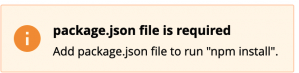
After creating the app, you may see a message asking for a
package.jsonfile.
-
You can click Open to see a test page or Cancel to proceed.
2. Create package.json File
-
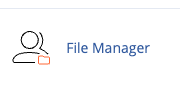
Go back to cPanel > File Manager.
-
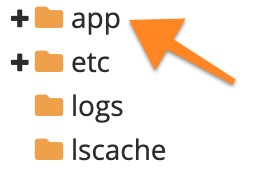
Open the folder you set as your Application Root.
-
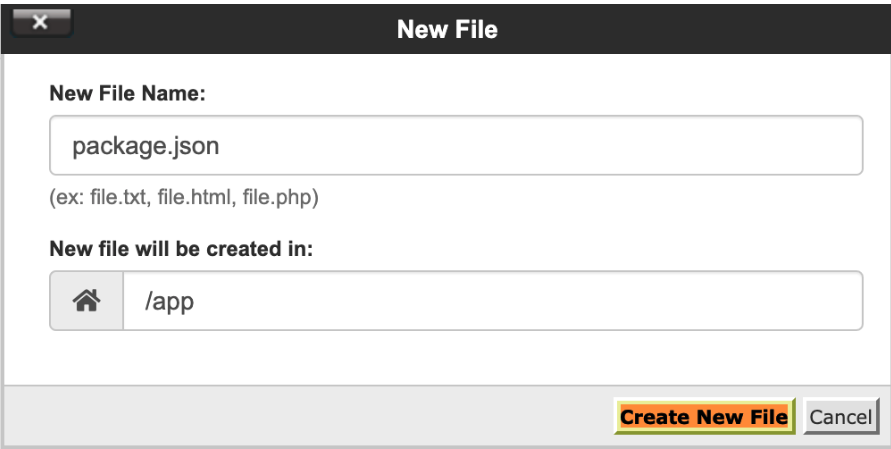
Click +File and name it
package.json.
-
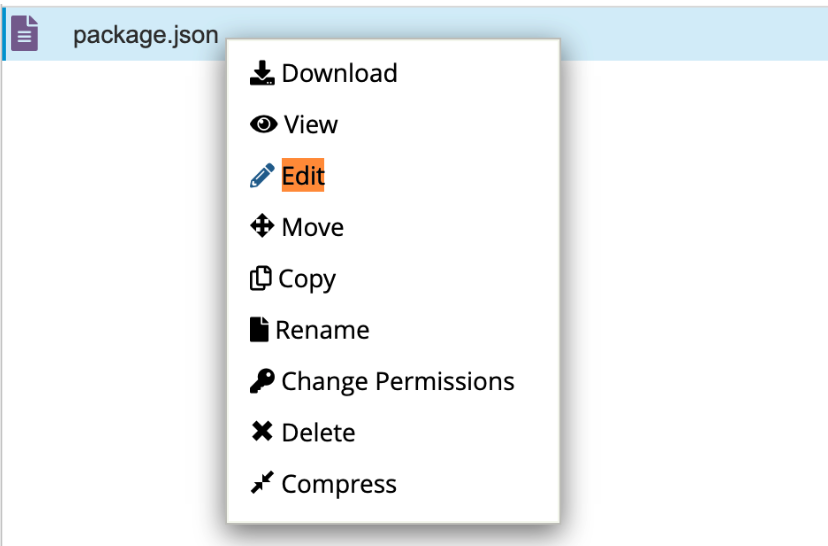
Right-click the file and choose Edit, then paste the following
-
Click Save Changes, then Close.
3. Install NPM Packages
-
Go back to Setup Node.js App in cPanel.

-
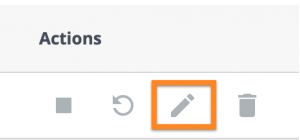
Click the pencil (edit) icon beside your application.
-
Click Run NPM Install to install dependencies from
package.json.
To install more packages or run commands, use SSH and activate your app’s virtual environment (see below).

Setting Up Node.js Using SSH (Advanced Users)
If you prefer working through the terminal, follow these steps to configure your app via SSH.
1. Connect to SSH
-
Login via SSH using your hosting account credentials.
2. Create Application Using CloudLinux Selector
3. Navigate to App Directory
4. Create package.json
Use your editor (e.g., vi, nano):
Paste the following content:
Save and exit (for vi: press Esc, then type :wq and press Enter).
5. Install Node Modules
6. Activate Virtual Environment
You're now inside the isolated environment and can install packages using:
You're All Set!
Your Node.js app is now up and running on Prabhu Host using either the easy cPanel GUI or the powerful command line. If you encounter any issues, don’t hesitate to reach out to our 24/7 Support Team we’re always here to help!
